
AI Connections Byok
Bring Your Own AI
You may have heard this called BYOK before. Same thing, just an easier name to remember.
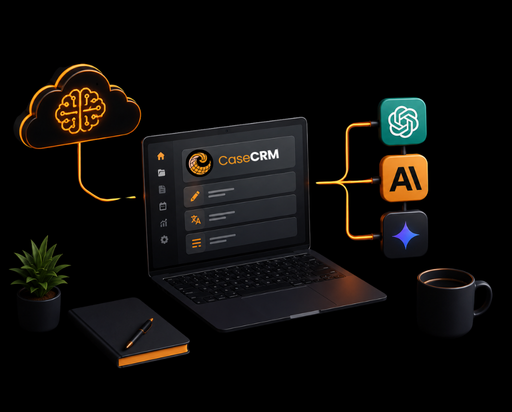
Does your firm already have a ChatGPT, Claude, or Gemini account? You can plug that same account into CaseCRM. Every AI button you already use – drafting, translating, summarizing – will then run on your account instead of CaseCRM’s.
Why bother with this?
If your team uses AI a lot for case work – and most immigration practices do – this simply gives you more say over how that AI is paid for and which one you’re using.
You only pay for what you use
Busy filing months mean more AI use. With your own account, you pay your provider's normal rate - nothing extra added on top, and no limit you can suddenly hit mid-case.
You choose which AI does the writing
A petition letter or RFE response deserves a good model. You get to pick from whichever ones your account can use, instead of being stuck with just one option.
Stick with the AI provider you already trust
If your firm already has an agreement with an AI company you're comfortable with, you can keep using that same one inside Cas
Where you'll actually notice it
Nothing new to learn – just the same AI buttons you already click, quietly running on your own account instead
Writing petitions and cover letters
Drafting cover letters and supporting statements for filings like RFE responses etc
Translating client documents
Translating birth certificates, marriage records, and other documents your clients send you - right inside their case file.
Summing up case notes
Turning a long intake call or a pile of case notes into a short summary you can skim before your next client meeting.
Sending clients an update
Writing a simple, friendly status email your client will actually understand, without you starting from a blank screen.
Not ready to connect anything? That's completely fine.
This is entirely your choice. Until someone at your firm connects an account, everything keeps working exactly like it does today, on CaseCRM's own built-in AI. You won't lose anything or break anything by simply skipping this page.
Once your own AI is connected,
here's what can be automated for you
What can be done with a custom AI agent:
- RFE and request responses can be drafted automatically from the case notes on file.
- Client status updates can be generated in plain language, straight from the current case status.
- Missing documents can be identified and a reminder email drafted automatically.
- Long case notes and intake calls can be summarised into a short, ready-to-read note.
- Submitted documents can be translated, with any inconsistencies flagged for review.
- Client approvals can be followed up automatically if no response is received within a set time.
What to expect, once it's connected
Here’s the plain-English version of how it behaves day to day. The actual setting-up is done by whoever manages your account, so you don’t need to worry about that part.
🧩 Who can set this up
Only your top admin can turn this on
This is only something your Super Admin or Admin Manager can do, from Organization Settings. That’s on purpose – since it involves an account your firm pays for, only your most trusted admins can touch it. Everyone else on your team won’t even see this option, and they don’t need to.
🧩 One AI account at a time
Whichever one you connect, it runs everything
Your firm can save more than one AI account, but only one is “switched on” at a time. That one powers every AI feature in CaseCRM – writing and images both – not just one or two.
The first account you connect gets switched on automatically. Want to use a different one later? It’s a one-click switch, nothing to redo.
🧩 If something stops working
You'll be told, not charged behind your back
If your connected account expires or runs out of balance, CaseCRM will show you a clear message and flag it so you know to fix it. It will never quietly start charging you through CaseCRM’s own AI instead – the only time that happens is if you never connected an account in the first place.
🧩 Generating images
You'll only ever get a real image, or an honest "not possible"
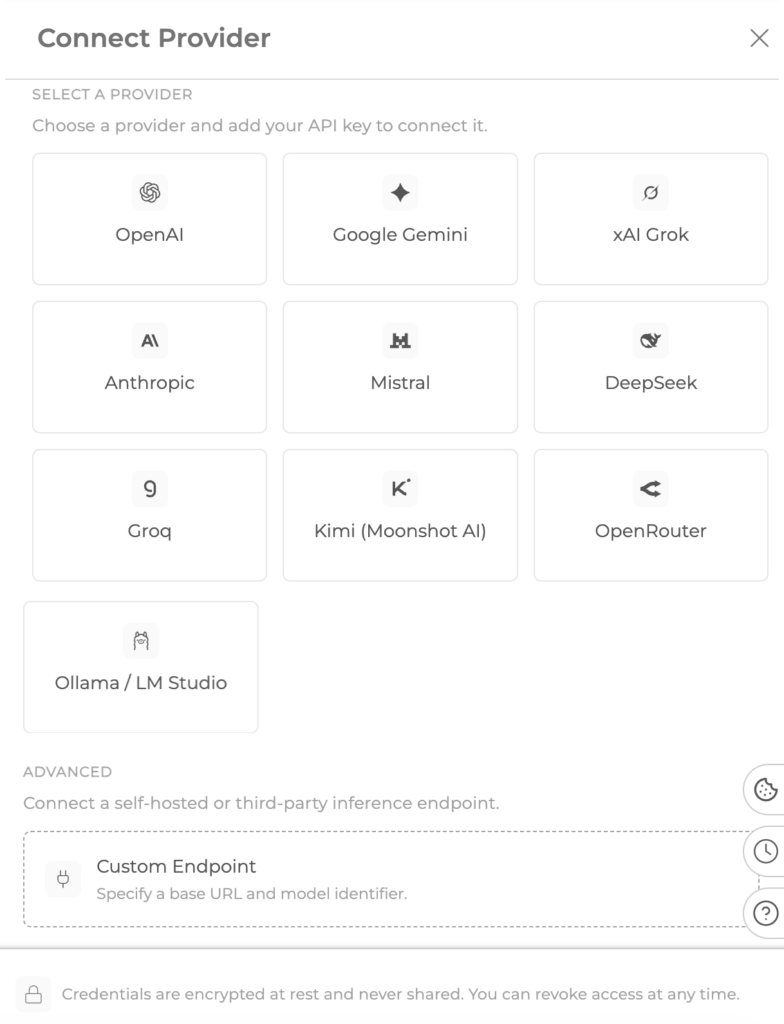
Some AI companies can create images — like OpenAI, Google Gemini, and xAI Grok. Others are text-only, like Anthropic, Mistral, DeepSeek, and Groq. If you connect one of the text-only ones, the image button simply turns off with a short note explaining why. Nothing is faked, and you’re never charged for an image you didn’t get.
Can make images: OpenAI, Gemini, Grok | Text only: Anthropic, Mistral, DeepSeek, Groq
🧩 Still want images anyway?
Add a second account just for images
If you’d rather keep using a text-only AI for writing but still want image generation, you can add one extra, image-only connection alongside it. Your main account for writing stays exactly as it is – this just quietly fills the one gap.
🧩 Seeing what you've used
A simple usage screen, just for your own reference
There’s a screen showing how much AI your firm has used each month, broken down by account. There’s no “limit” shown here, because your own account doesn’t have one for CaseCRM to track.
This is purely so you can keep an eye on things – CaseCRM never charges you based on it.
🧩 Is it safe?
Yes - here's why
The login details for your AI account are locked away and encrypted, never shown on screen again once saved, and never stored anywhere they could leak. Only your firm can ever use the account you connect – no one else’s firm can touch it
Common Questions
Just your Super Admin or Admin Manager – usually whoever manages billing and settings for your firm. Attorneys, case managers, and everyone else won’t see this option, and there’s nothing for them to do.
Yes. If the AI account you use for writing can’t make images, you can add a second account just for that — your writing account stays exactly as it is.
When you connect an account, CaseCRM checks it first and will tell you plainly if it’s out of balance rather than just saying “invalid.” And if it ever runs dry later on, you’ll get a clear heads-up so you can top it up — nothing switches over and charges you without warning.
No. The usage screen is just there so you can keep an eye on things. Any charges come directly from your AI provider, at their normal rates — CaseCRM doesn’t add anything on top.
Yes. It’s encrypted and locked away the moment you save it, never shown on screen again, and never something another firm could ever access or use.
Your Clients Deserve Better — So Do You
Take the First Step Toward a Simpler Practice
Have a Query?
Get a Guided Demo
Experience Stress-Free Case Management
Call Us: 9 2424 786 | Email Us: info@casecrm.co.nz